How to Open GLB Files
Open a .glb file by selecting it in the GLB viewer or dragging it into the workspace. A GLB usually packages a glTF scene, geometry, and textures in one binary file, so most assets need only a single selection.
Updated November 14, 2026 · A practical guide1. Choose a GLB file
Open the GLB viewer and select Open 3D File, or drag a .glb into the dark workspace. On a phone, use the file picker to select a downloaded file. The default limit is 100 MB for all selected resources. A very complex model may still exceed your device’s graphics memory even when its file size is below this limit.
2. Take a closer look
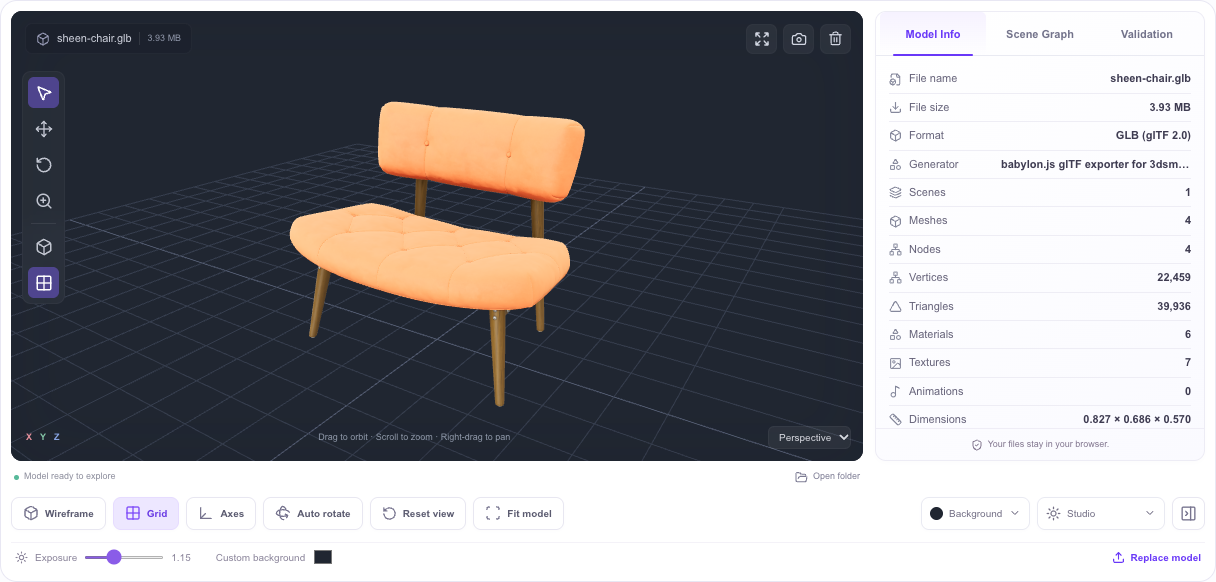
Rotate by dragging, zoom by scrolling or pinching, and pan with a right-drag or the Pan control. Use Fit model if the object is out of frame. Toggle the grid, axes, or wireframe to inspect its structure. Studio lighting and exposure affect the preview without changing the source file.
3. Check materials and motion
Open Model Info to see real parsed statistics and Scene Graph to inspect nodes. If the file contains animations, choose a clip and use play, pause, restart, speed, and loop controls. No animation bar means that no animation clips were found. A screenshot downloads the current preview as a PNG; it does not export a new model.
4. Validate before importing elsewhere
Run Validation to check data structure, resource references, and accessor consistency. Open each issue for its code and JSON Pointer, then fix the source or export settings and validate the new file. Warnings may point to portability concerns. Finish by opening the asset in the application where it will be used, since that importer may support a different set of extensions.
Why does a single GLB need extra files?
GLB can embed a JSON description and a binary chunk, but it may also reference external resources. If the viewer names a missing BIN or image, select that resource together with the model. The GLB specification does not guarantee that every exporter produces a self-contained file.
Why does the preview look different?
Compare the texture files, lighting, tone mapping, and extension support in both applications. Try another environment or exposure here; these controls change only the preview. If a required extension is unsupported, the load error names the limitation. To change materials or re-export, use Blender’s glTF 2.0 importer or the authoring tool that created the asset.
Inspect a GLB in a useful order
First frame the whole object with Fit model, then rotate around it to check surfaces that are hidden in the opening view. Use the grid and axes for orientation, and switch to wireframe when you need to see mesh layout. Model Info reports parsed counts for geometry, materials, textures, nodes, and animation clips; Scene Graph helps locate individual parts. These are observations about the file, not a score for topology or visual quality. If clips are present, play each one and watch for missing movement, unexpected scale changes, or parts that remain static.
Separate packaging from compression
A GLB extension does not indicate how much the model has been compressed. Two exports of the same scene can differ greatly because of image dimensions, texture encoding, mesh detail, and optional extensions such as Draco, Meshopt, or KTX2. A smaller download may take more work to decode or may require an extension that a target application does not support. Compare the complete asset and test it in the destination workflow rather than choosing by file size alone. The viewer supports selected decoders, but no single browser viewer can promise identical results in every runtime.
What this preview can verify
Use the preview to confirm that the scene opens, its visible parts and textures are present, and any animation clips can play. Model Info and Scene Graph expose parsed data for further inspection. The page does not edit or convert the source file; use a 3D authoring application for those changes. For delivery, run Validation and then open the export in the destination application.
Check the exported file before sharing it
Before sending a GLB to someone else, confirm that you are sharing the newest export rather than a similarly named earlier version. Open the file from its delivery folder, check its materials and clips, and inspect the issue report if validation finds a problem. If you exported a compressed asset, make sure the receiving application supports the required decoder or texture extension. When a recipient reports a missing image, return to the source project and export a self-contained file if that option is available. Keep the authoring project as the editable source; this viewer is for reviewing the delivery copy.
Ready to take a look?
Open your model. Explore every detail.