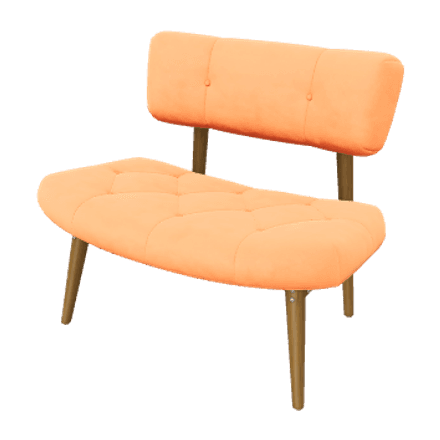
A GLB preview, without the extra setup.
A GLB is the binary container form of glTF. It commonly packages the scene description, geometry, and textures together, so a GLB viewer can open a downloaded model with one file selection. That makes it practical for checking a handoff before importing the asset into Blender, a game engine, or an AR workflow.
Select your GLB file above. Use Model Info to review parsed geometry and materials, Scene Graph to inspect its hierarchy, and Validation to check structural issues. Most files are self-contained, but a GLB may reference external resources; if the viewer reports a missing file, select that dependency too.
Have a JSON-based asset with separate BIN and texture files? Use the glTF Viewer and select the complete folder so relative resource paths remain available.
What is inside a GLB?
| Feature | glTF (.gltf) | GLB (.glb) |
|---|---|---|
| Structure | JSON scene description | Binary container |
| Resources | Often separate files | Usually embedded |
| Compression | Optional extensions | Optional extensions |
| Best for | Editing & debugging | Sharing & delivery |
Binary packaging is not compression. File size depends on geometry, textures, and optional compression extensions.
How to use this online GLB viewer
Choose Open 3D File or drop a .glb into the workspace. The file is parsed in your browser and rendered as an interactive scene; no account or server upload is part of the viewing flow. Drag to orbit, scroll or pinch to zoom, and pan to reposition the camera. Fit model brings the complete asset into view if the camera starts too close or the model appears off screen.
Once the scene is visible, inspect it in a deliberate order. Rotate around the model to check surfaces on every side, switch camera presets for a consistent front or top view, and use the grid or axes to understand orientation. Wireframe can reveal mesh layout, but it does not assess whether a mesh is clean or suitable for a particular production task.
Inspect geometry, materials, and animation
Model Info shows values parsed from the selected asset, including scene, node, mesh, material, texture, vertex, triangle, and animation counts when available. Scene Graph exposes the node hierarchy. These numbers describe the data the viewer loaded; they are not a quality rating. Dimensions are expressed in model units. glTF uses meters by convention, but the source may use a scale that does not represent real-world measurements.
If the GLB contains animation clips, use the playback controls to select a clip, play or pause it, restart, change speed, and toggle looping. A static model has no animation bar. Skins and morph targets are interpreted from the asset data, although playback appearance may differ from another renderer because lighting, extensions, and application settings are not identical.
Why a GLB may need another file
The format is designed to package glTF content in a binary container, and exporters often embed buffers and images. However, the container can still contain references to external resources. When an error names a missing BIN or image, include that exact file and preserve any relative folder path. A similarly named texture in another directory may not satisfy the reference.
If a downloaded asset arrives as an archive, extract it first and keep the original folder structure. For a genuinely single-file delivery, return to the source application and export with its embed or package resources option. Do not rename a .gltf file to .glb: changing the suffix does not create a valid binary container. After re-exporting, open the new file and check the intended materials and animations.
File size, compression, and compatibility
A GLB is not automatically smaller than a separate-file glTF package. Compare the GLB with the total size of the JSON, geometry buffer, and images together. Texture resolution, image encoding, mesh detail, and optional extensions affect size. Draco and Meshopt can compress geometry, while KTX2 is used for compressed texture workflows; decoder and extension support must also exist in the target application.
The viewer supports common PBR materials and selected compression loaders. If loading fails, check the error and extension list, then run the glTF validator. Before delivery, verify the export in the game engine or AR platform that will use it.
When to use an editor instead
Use this page to inspect an export. To change geometry, UVs, materials, animation, or scale, edit the source in Blender or another authoring application and export again. Camera, lighting, background, and wireframe controls affect only this preview.
For a useful handoff, keep the authoring project, export the delivery GLB, preview it here, and test it again in the destination environment. If you are deciding between a binary package and separate resources, see glTF vs GLB. If the scene uses external resources, the guide to opening glTF files explains folder selection and path troubleshooting.
Frequently asked questions
How do I open a GLB file?
Select Open 3D File or drop one .glb file into the workspace. After loading, drag to orbit, scroll or pinch to zoom, and right-drag to pan. No account is needed.
Is a GLB always self-contained?
No. Most GLB exports embed their buffers and textures, but the format can still reference external resources. Select any referenced files together with the GLB.
Why does a GLB look different from Blender?
Lighting, tone mapping, material extensions, and export settings can differ between applications. Try studio lighting and exposure controls, check textures, and validate the exported file.
Can I edit or convert a GLB here?
No. Use a 3D authoring application to edit or convert the source, then open the new export here to review it.